The heart of Arborist is Repository Commands. These are your frequently-used shell commands that are tailored to a specific repository, which you can then run in any worktree.
While the commands themselves belong to a repository, commands are run in the context of the selected worktree. For example, you might have a command to run tests such as swift test or npm run test. Running a command is just a click away.
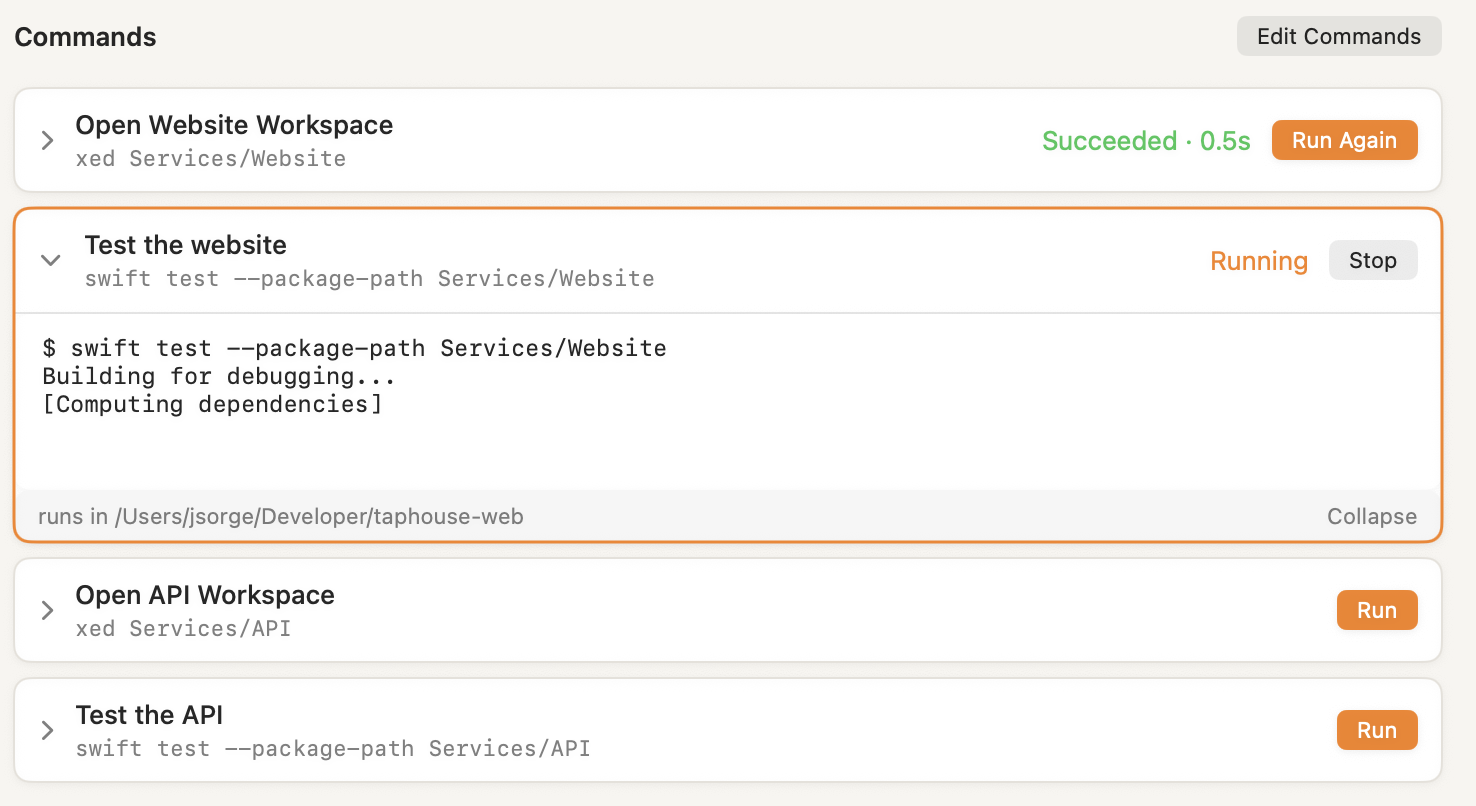
Edit the Commands Section
At the top of the screenshot above there is an “Edit Commands” button. Click on that to transition the section into edit mode. This is where you can add, delete, edit, and reorder the commands tied to a repository.
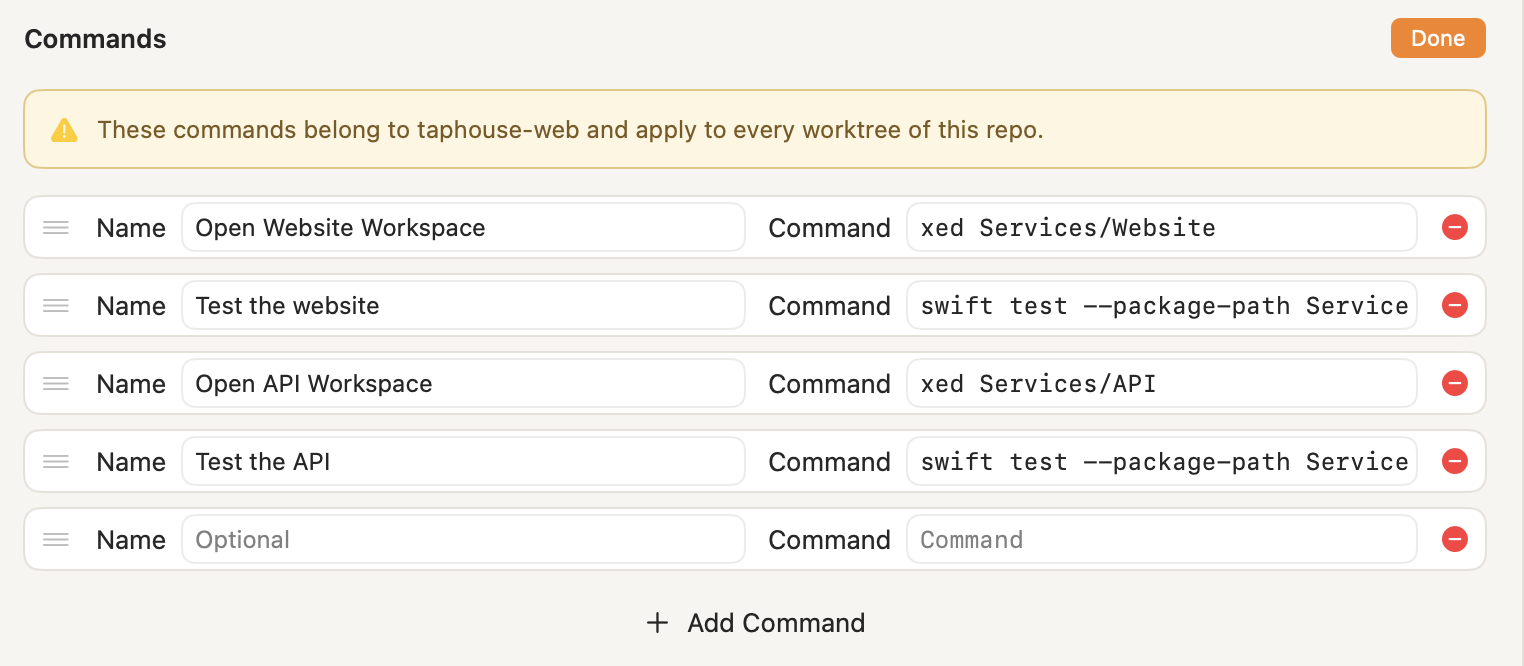
Clicking the + Add Command button will add a new row to the section with empty contents. You can name the commands and enter the shell prompt to be executed. If no name is given then the text of the command will be shown.
The handle on the left side of a command lets you reorder it in the list. When you’re done editing you can click the Done button and the view will transition back into run mode, allowing you to run any of the commands attached to your repository.
Running a Command
Clicking a command’s Run button will run the command right away. You can use that same button to stop a running command while it is in-flight.
When running a command the output will be shown in a small console that expands when you run it. This is a live diagnostic view of the output and not a permanent log. If there’s anything important in that console then be sure to copy it out to your own location for safe keeping, as another run of the command will reset the console.
Configure the Command Environment
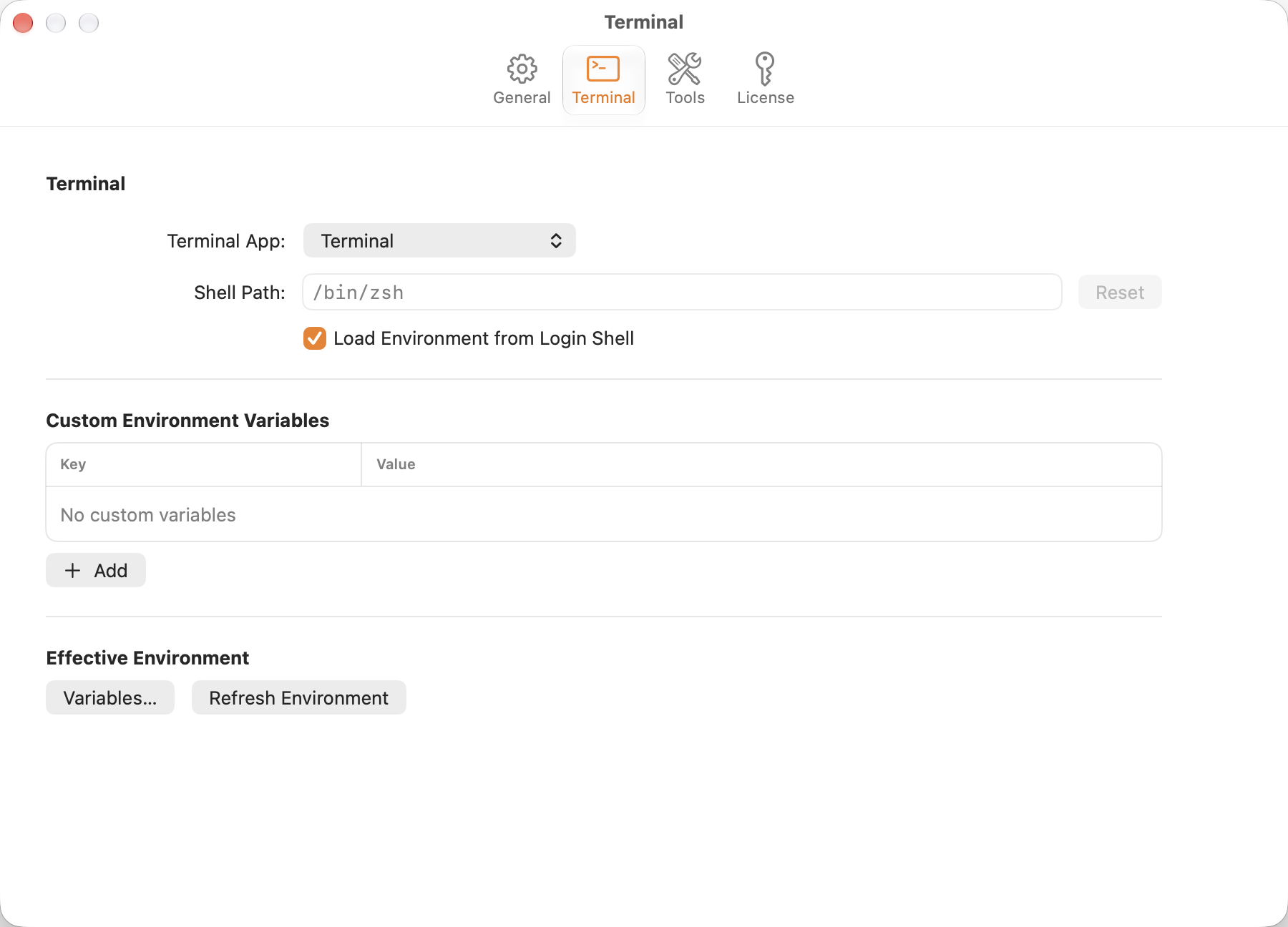
By default, Arborist will use the same shell environment as your regular terminal. This allows for tools like mise to be picked up and run by Arborist. If you want to customize the command environment you can do so in settings. There is a pane called “Terminal”, and that is where you can specify the shell path to load as well as add any custom environment values you wish. These then become available in the Arborist command running environment.
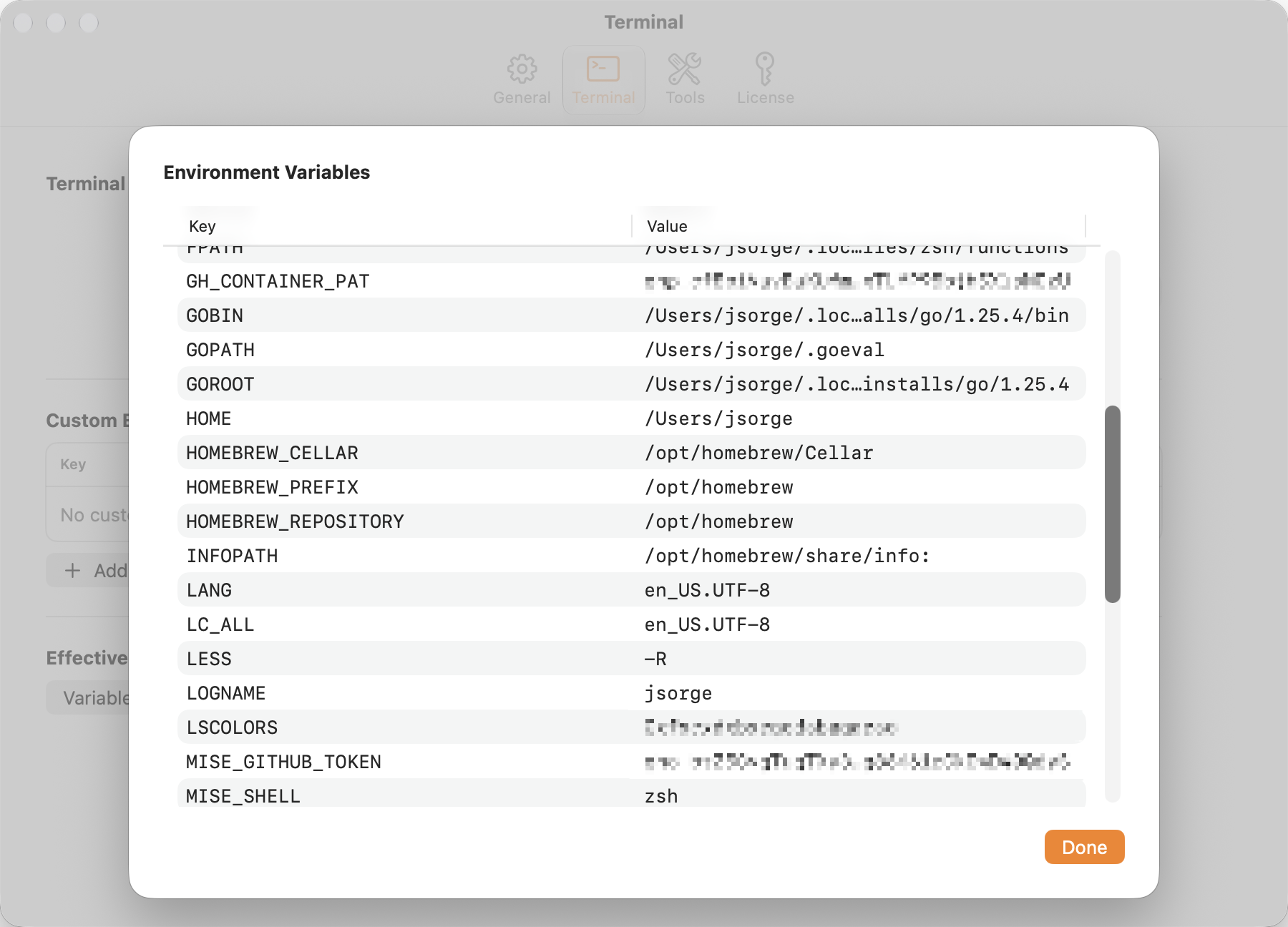
You can see the fully resolved environment variables as well.
Command Security
Because repository commands run in the context of your logged in user and without any sandbox they can modify or delete files. Take precaution that you’re not running a destructive command from Arborist and be sure to enter safe commands only.
Review a command carefully before running it
Quote paths and placeholder values correctly
Do not run commands given to you by someone you do not trust
Troubleshooting a Command
If you’re having trouble with a command in Arborist, it may be helpful to copy it out and run it in the terminal for debugging. You can open a selected worktree in the terminal by selecting Open Worktree in Terminal from the Worktree menu (or using the cmd-ctrl-t keyboard shortcut). Once you have the command worked out in the terminal then you can paste it right back in to Arborist.
NOTE: Arborist does not support interactive commands, so those will fail to run in Arborist but succeed in your terminal.