An Arborist license is a one-time purchase which entitles you to all the updates for that major version. There is no subscription for Arborist.
Purchasing
The purchase happens from the License pane in settings. Arborist uses iCloud to assign a license, which enables you to easily share one purchase across all of your Macs. By default the system’s iCloud account is used. But if you want to sign in to a different iCloud account you can sign in on the web using the link in the account box to do so.
Once you’re signed in you can click the Buy button and you’ll be taken through the purchasing process.
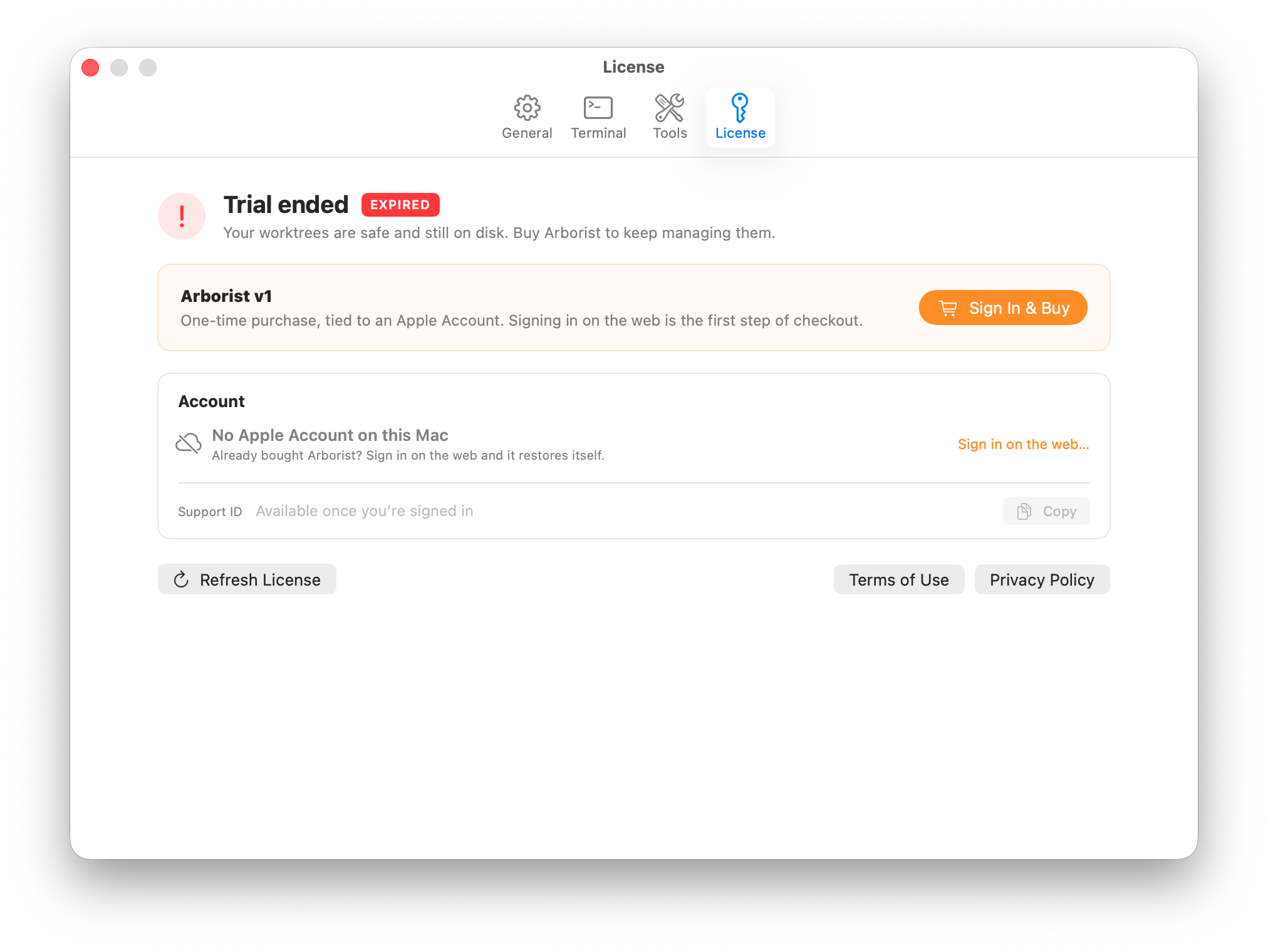
Trial
There is a a 14-day free trial so you set things up and get a feel for the app. If your trial has expired the main window will become unavailable until a license is purchased.
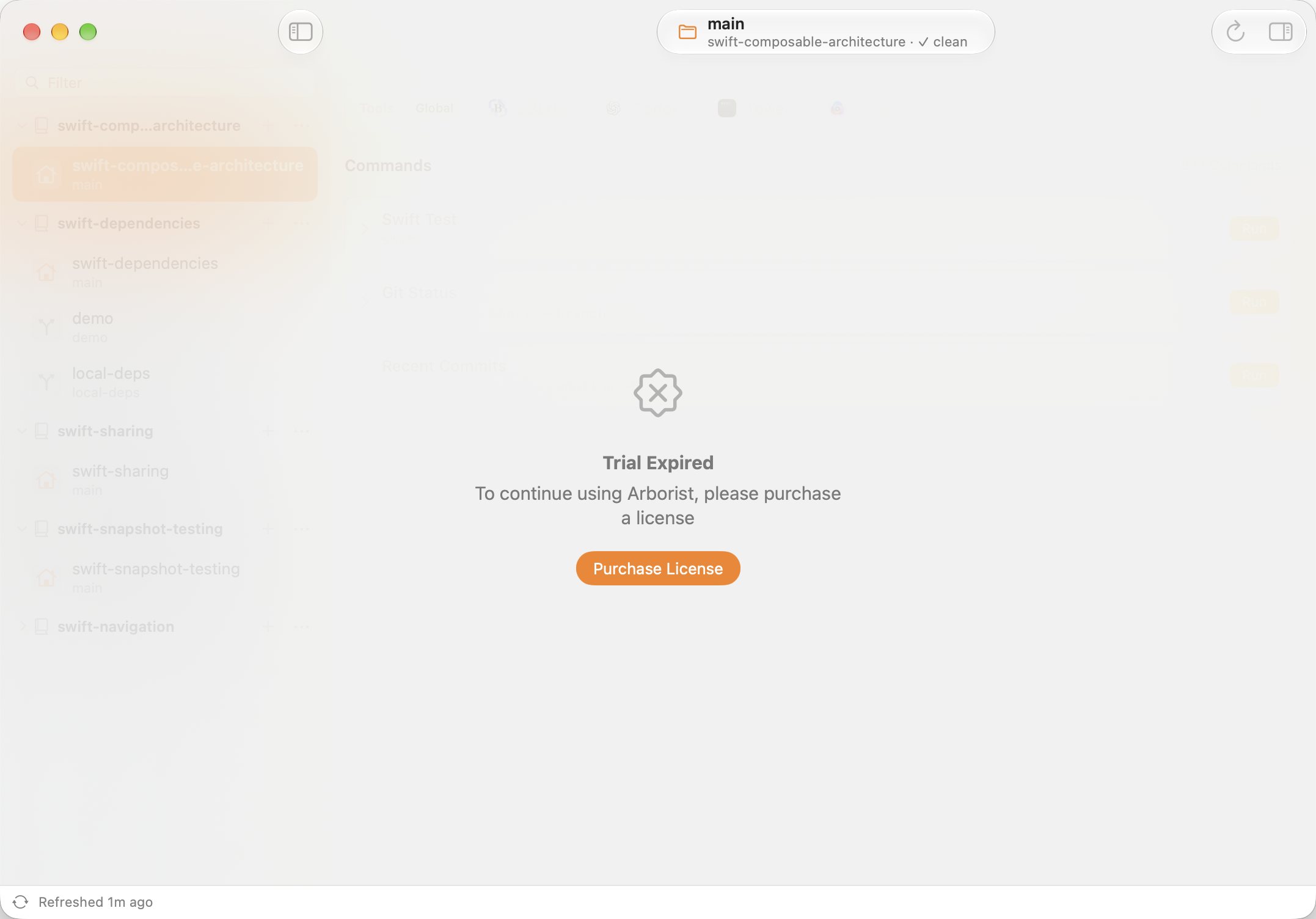
Once the purchase is complete, the license activates instantly and you’ll see the main window return to normal.
iCloud In-Depth
As mentioned above, Arborist uses your iCloud account as the identifier to associate a license. This means that there’s no email address to give and no license code to enter. If you are logged in to iCloud on your Mac you will see the associated email address in Settings, but this is done completely on your Mac using a private Apple API and that email address is never transmitted off of your Mac.
If you want to use a different iCloud account for your Arborist license, that’s no problem at all. You can log in to iCloud on the web using the link in Settings (which is visible in the first screenshot above), and Arborist knows nothing about the email address associated with that account when you use web login. This provides a handy way to have purchased Arborist on a personal Mac, and share that license with a work Mac that does not use your personal iCloud account.