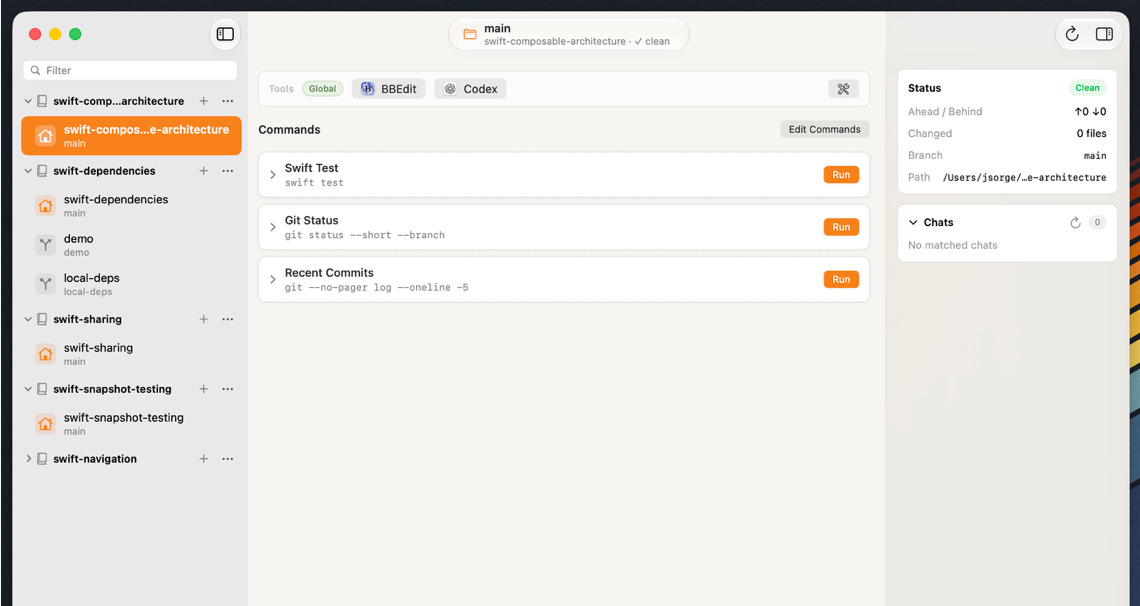
When you open Arborist you’ll be greeted by a window that is split into 3 sections:
On the leading side is the sidebar, containing all of your repositories and their worktrees
In the middle is the “command center”, where you can run tools and commands. Read more on those in their respective pages.
The trailing side is an inspector for the actively selected worktree. It has basic information about the branch checked out, as well as a list of the found AI chat transcripts from that worktree.
Adding a Repository
Adding a repository to Arborist is as easy as either opening it via the File -> Add Repository command or dragging and dropping it on to the Arborist window. Once the repository is loaded it will appear in the sidebar, and Arborist will pick up any worktrees already associated with it.